 Fantasia
Help center / Image
Characters
Save a person once and call them with @ and their name in a video or picture prompt, so their picture goes with every prompt that names them.
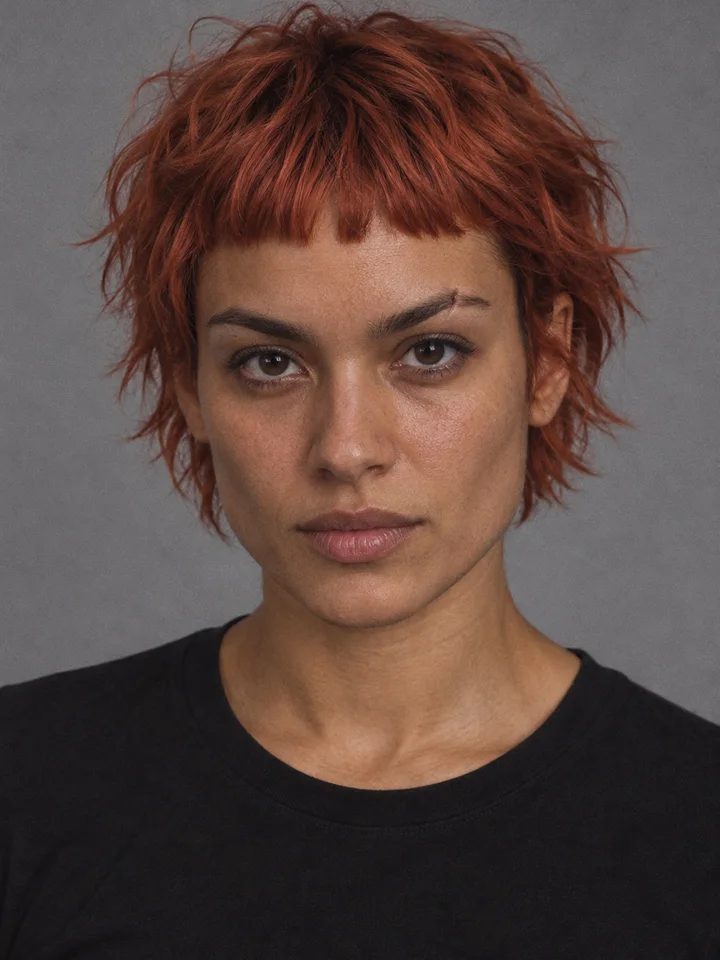
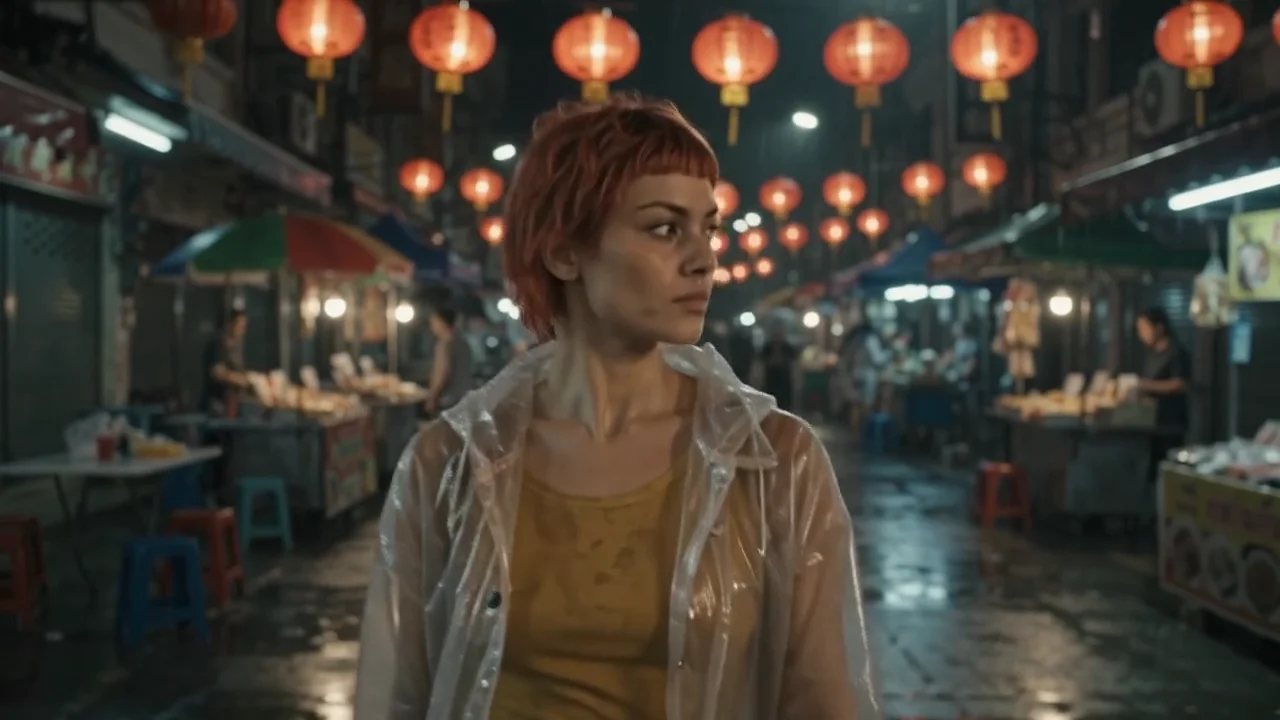
- From a photo
- Free
- From a description
- 2 credits
- Voices
- Free stock, 2 designed, 4 cloned
When to use it
- The same person, creature or mascot will appear in more than one video or picture.
Create a character
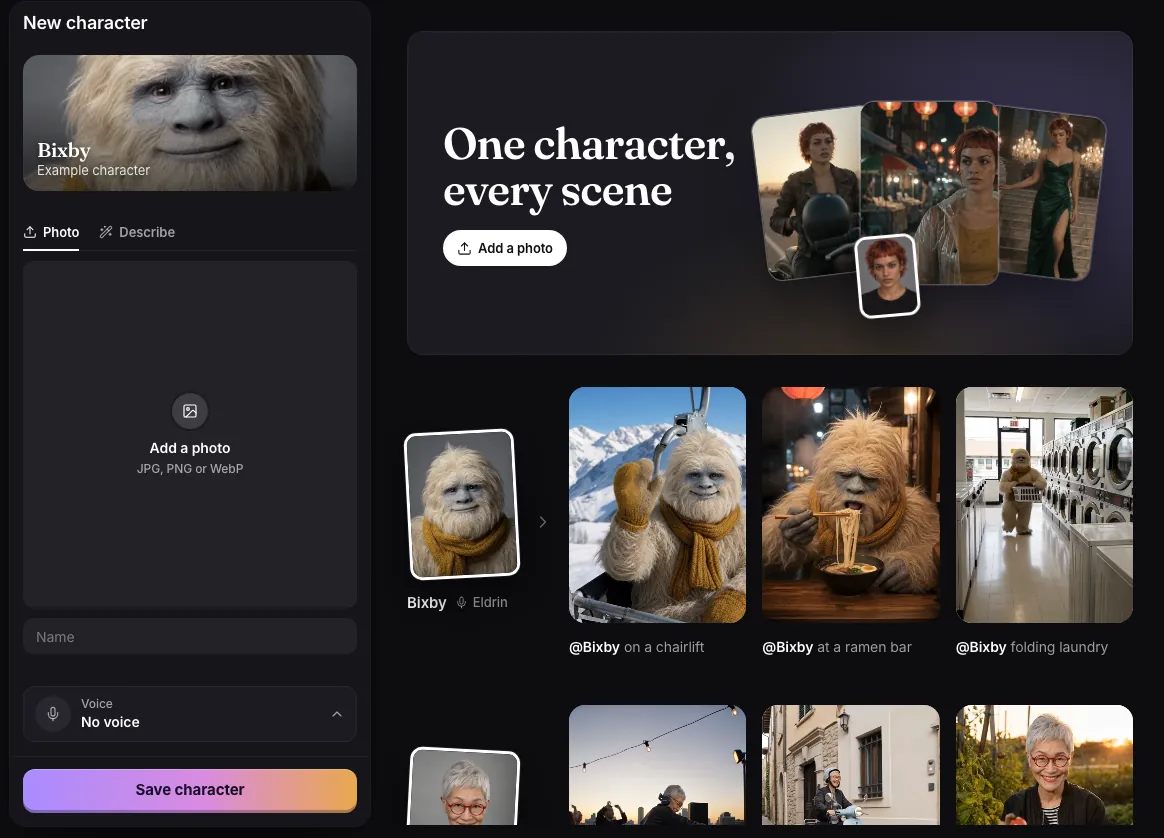
- Add a photo, or describe the character in up to 400 characters and pick a style.
- Give them a name of up to 40 characters.
- Optionally save a voice with them: a stock voice, a recording of your own, or one designed from a description.
- Save. Type @ and the name in a prompt, on a model that takes references, to bring them in.
What it costs
- From a photo: free.
- From a description: 2 credits for the portrait, 3 if it copies a style from a picture you add. Draw again costs the same.
- Voices: a stock voice is free, a designed voice is 2 credits and a recorded clone is 4.
Where characters live
Characters are in Assets under Elements, next to Scenes and Styles, which work the same way for places and looks. Any picture you made can become one with Save as character. Characters are private to your account.
Common issues and fixes
| What you see | What to do |
|---|---|
| Add a photo first. | Add a photo of the person, or make a portrait first. |
| Give the character a name. | Type a name; later, type @ and the name in a prompt on a model that takes references. |
| Not enough credits for this voice. | Top up credits or save without a voice. |
| Couldn’t start the portrait. | Press Generate again. |
| Couldn’t save the character. | Try saving again. |
Questions
How do I keep the same face across videos?
Save the person as a character, then type @ and their name in each prompt, on a model that takes references and with the References tab (not Keyframes). Their picture goes with each of those generations.
Related
Updated November 18, 2026. Prices are in credits, as checked on that day.